

Brain Button – Update DAIA Knowledge
Starts the analysis of the DEON project. When you open the DAIA panel for the first time in a DEON project, you will be automatically asked if you want to start the analysis.
Each time the project content changes, the button turns red. To update the knowledge, press the red button. The update only processes the changed content.
Trash Button – Delete Current Knowledge
Use this button if you believe that the knowledge was not generated correctly, or if a major DAIA update has been released and DEON recommends deleting old knowledge to enable better quality with the new version.
Microsoft Copilot activate (M365 Grounding)
Enables the connection to your Microsoft 365 Copilot. When this feature is active, DAIA uses the Microsoft Graph to safely answer your questions based on your internal company data (such as Outlook emails, Teams chats, SharePoint and OneDrive files).
On first activation a dialog opens for authentication
DEON Graph Chat Mode
If you activate this button, your chat conversation will be created as a graph within the DEON Workspace. This graph representation of your chat is visible to all users who have access to this project.
DAIA Button – Open/close panel
Opens or closes the DAIA panel.
DEON Desktop App
This is the DEON Desktop App. Available for Windows and macOS.
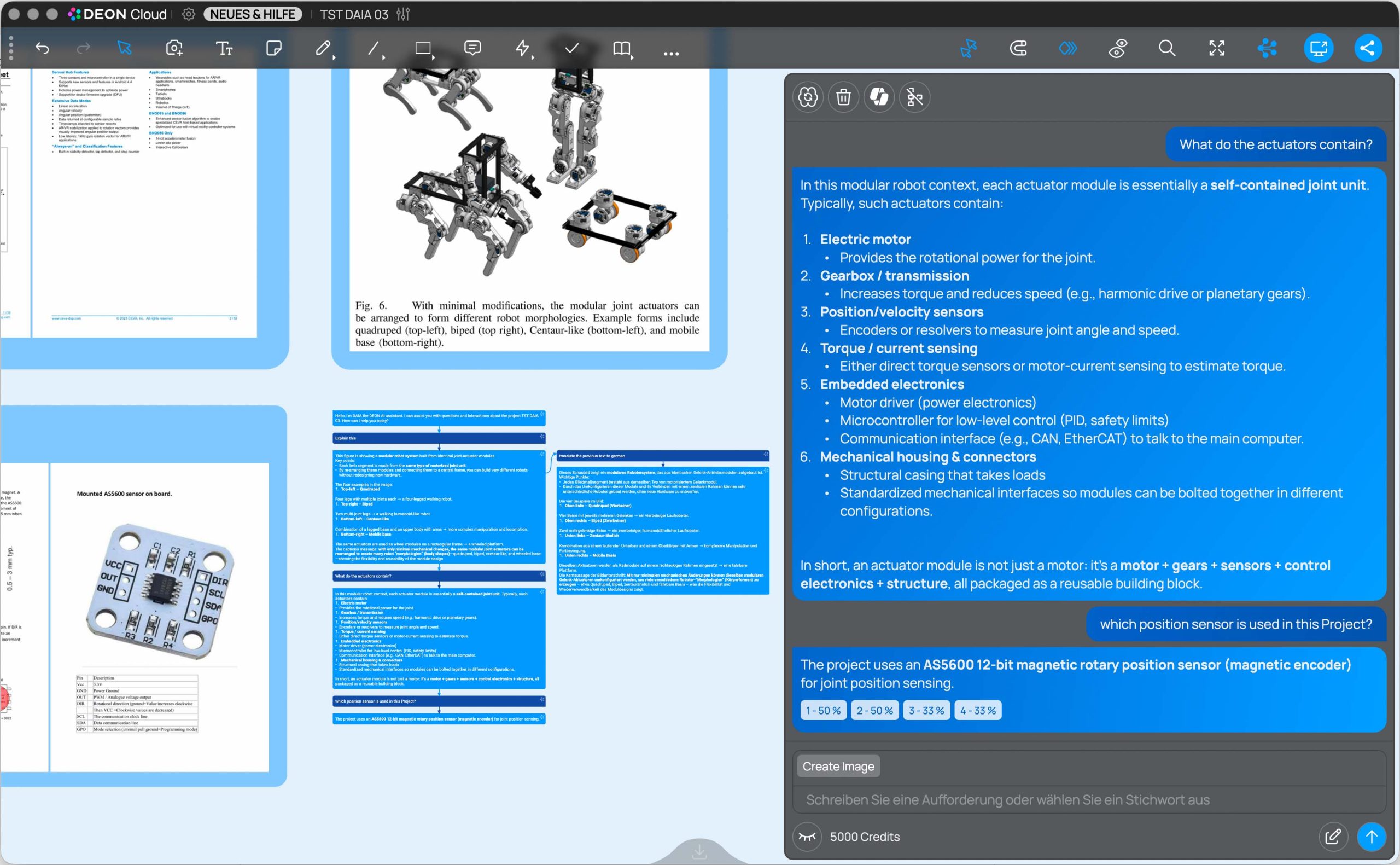
DEON Graph Chat in Workspace
The DEON Graph Chat within the DEON Workspace. It consists of DEON text elements and connections. You can edit and modify them freely like normal text elements. This allows you to use the results of your DAIA conversations to create new content in DEON.
Note: If you want to change the width of the DEON Graph Chat text elements, you can change the width of a text element by dragging the handles on the edges – the following text elements of the ongoing conversation will adjust to this width.
Graph Chat – Branching
If you click on a section (textbox) of your DEON Graph Chat (single click), this section becomes the current conversation position of the DAIA Chat Panel. This can be both a prompt and an answer from the conversation.
If you continue your conversation from this position, a new branch will be created in the DEON Graph Chat within the Workspace.
By clicking on sections of a DEON Graph Chat, you can switch between different conversation branches and the main branch. The DAIA Panel always displays the currently selected conversation branch.
This allows you to structure complex discussions and easily keep track of them. In addition, the context of each conversation branch remains clean and focused on the main topic, rather than mixing topics. This also leads to a better quality of AI responses.
DAIA Chat Conversation
In your DAIA Panel, your chat conversation appears as prompt and response bubbles in a scrollable view.
Tip: You can drag and drop both prompts and responses from the panel into the DEON Workspace to convert them into regular DEON text blobs and edit them further.
You can also select text within a bubble and drag only the selected text into the workspace.
Reference Button
Click on it to navigate to the content within the project that was used to generate the DAIA response.
Multiple reference buttons may appear. Each button displays the percentage of relevance of the referenced content to your question.
Prompt Bricks
Prompt Bricks are predefined prompt elements that you can click to use as shortcuts for prompting. For example, "Translate" or "Summarize".
Some bricks cause related bricks to appear. For example, "Translate" causes bricks like "English", "German", and other language bricks to appear.
Prompt Input Field
Enter your prompt in the prompt field here.
Send Prompt
Send your prompt. You can also simply press Enter on your keyboard.
While DAIA generates the answer, this button turns into a stop button (square symbol), with which you can cancel the generation.
Eye Button – Viewport Context
The Eye Button is disabled by default (closed eye symbol). When you activate it (the symbol then shows an open eye), DAIA sees your current viewport. You can then talk to DAIA about the content of the viewport.
The knowledge of the entire project is still available to DAIA, but DAIA will process your question in the context of the viewport.
If the eye is closed, DAIA processes your questions in the context of the entire project. The eye closes automatically after DAIA has answered your question.
Note: In addition to the Eye function, you can simply select content (text, images, documents, websites, and more) within the DEON Workspace to include the selected content in the current context of your DAIA conversation. A message above the prompt input field in the DAIA Panel informs you about this behavior as soon as you select something within the DEON Workspace.
Remaining DAIA Credits
In the free plan, you receive a certain number of free credits every month. These credits expire at the end of the month and are not carried over. You can top up your credits at any time.
In a paid plan, your monthly credit allowance is included in your subscription and replaces the free credits from the free plan. The credits included in the paid plan do not expire and are carried over to the next month.
To top up your credits, click on the text to open your account page in a web browser.
Start a New Conversation
Start a new conversation with DAIA.
It is recommended to start a new conversation or branch the current conversation if the topic of the new question is not the main topic of the conversation.