
If you want to organize a workshop with DEON, you will find the following functions useful.
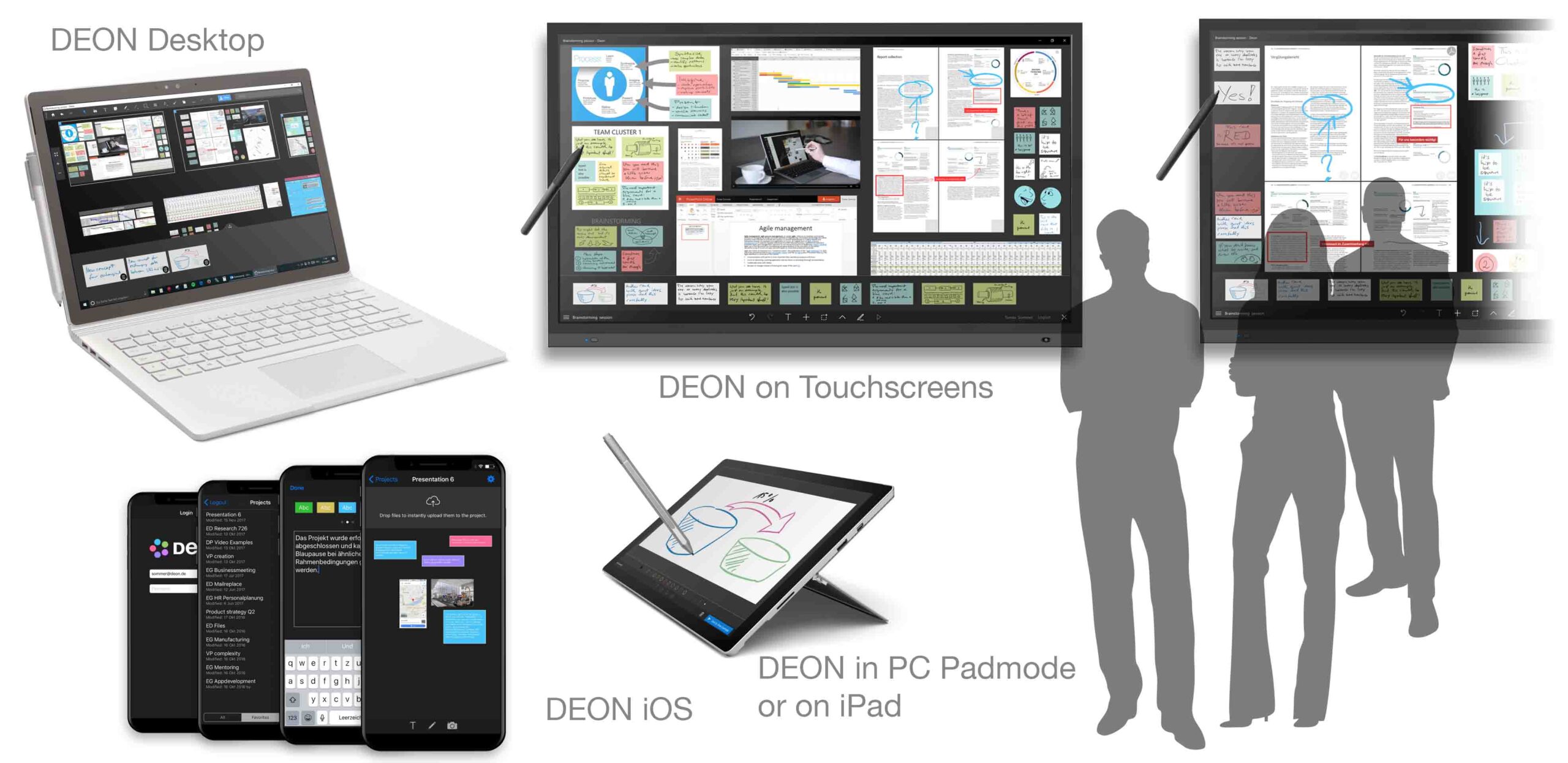
1 Pad Mode
When you switch to Pad mode, DEON appears with a very reduced user interface. This is perfect if you want to use several computers (e.g., tablets) during a workshop only for simple input of text, doodles, photos or websites.
TIP Without installing DEON, you can also DEON Web App Lite use to Textcharts send to projects (e.g., from a smartphone) or the DEON Web App for Desktop.
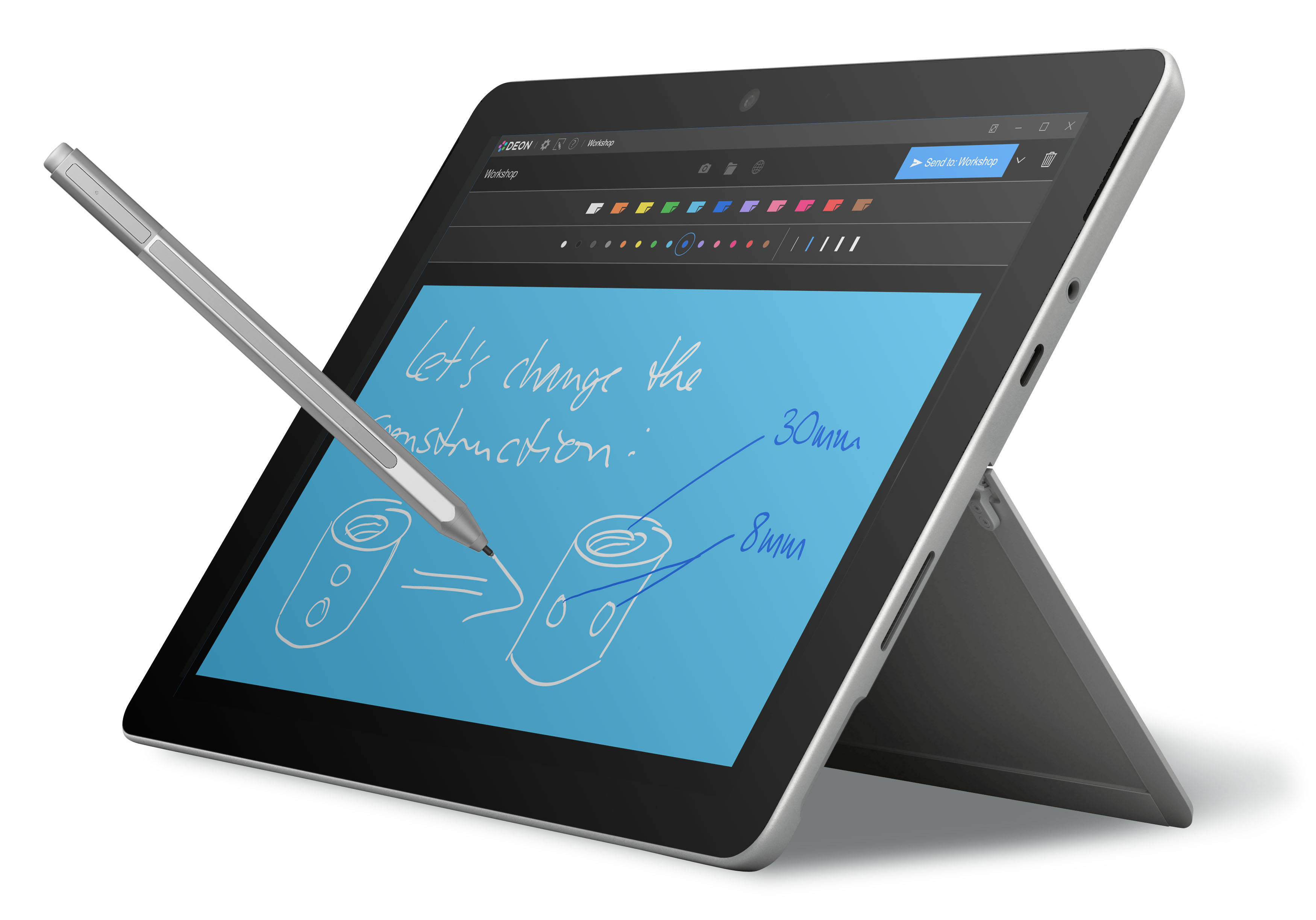
To switch to Pad mode, press „Enter Pad mode“  in the lower left corner of the DEON start screen. Then simply load any project.
Content you create in Pad mode lands in the inbox of this project after you have clicked the Send button in the upper right corner or simply swipe the content up. You can then drag the content from the inbox into your workspace.
In addition to text and doodles you can also take photos, transfer files or entire websites: 
2 iOS Apps
The DEON App für iPad is in the App Store both für Cloud as well as für On Premises verfügbar.
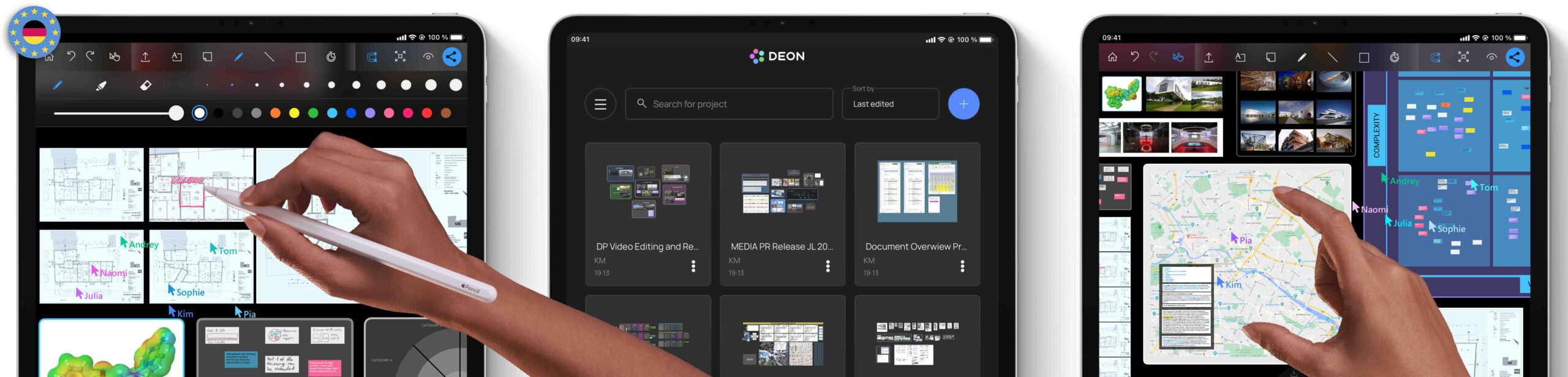
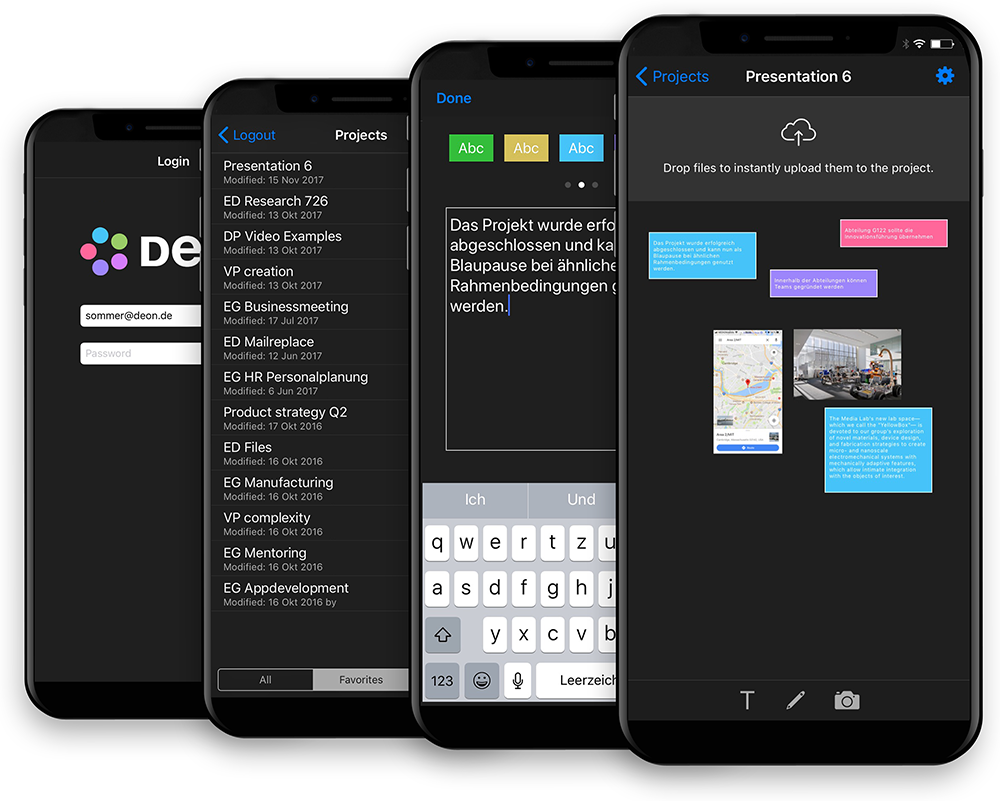
Für iPhone und iPad können you alternatively also the iOS DEON Lite App use (currently not für CLOUD verfügbar), when you während a workshop only want to contribute content. You können create multiple text fields or photos and keep them on your display until you decide to swipe one up to send it to the project inbox.
3 Web App Lite and Web App Desktop
Please note: You have different Web App Lite options for DEON CLOUD and DEON OnPrem.
Für DEON CLOUD simply open a browser on your smartphone and go to lite.deon.cloud or use the QR‑code function in the share‑dropdown dialog of your project. With lite.deon.cloud können you create text and upload images and photos.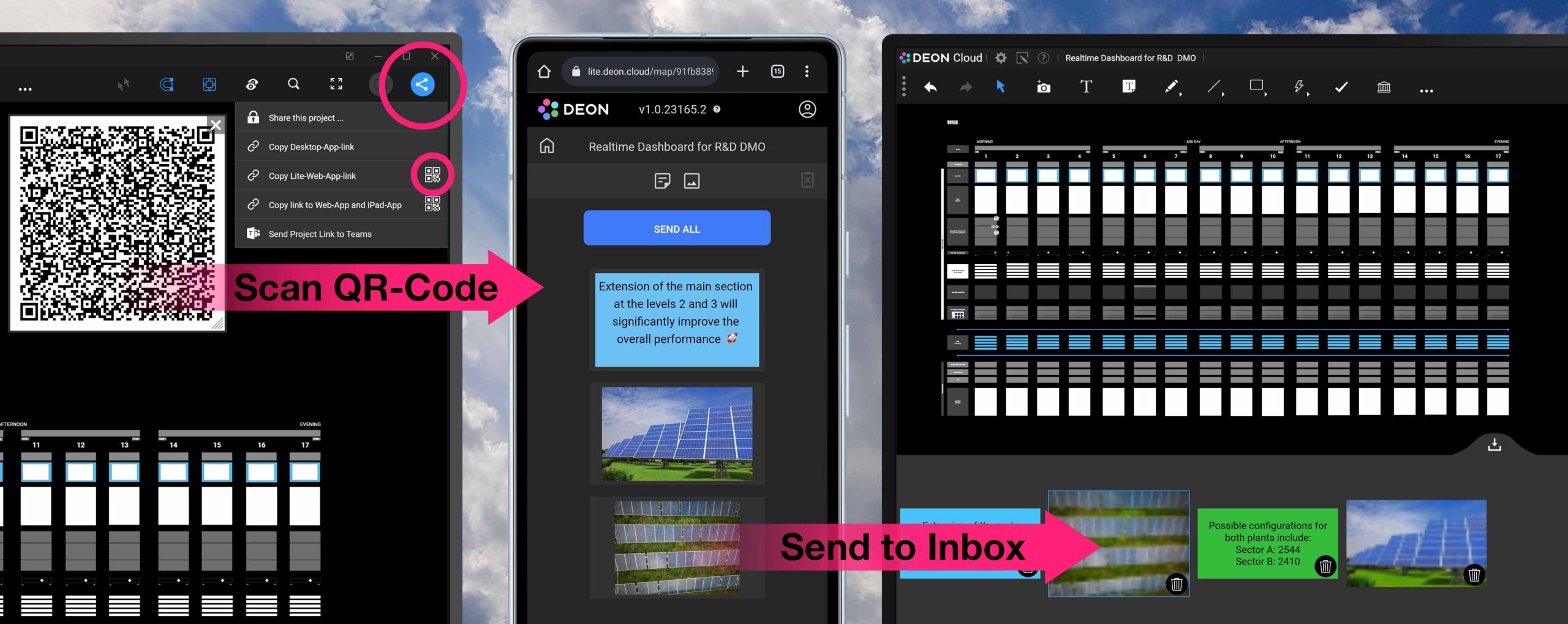
Für DEON OnPrem (cloud.deon.eu or an on‑premises server of your organization) install either the iPhone DEON Lite App or öopen a browser on your smartphone, enter lite.cloud.deon.eu or the URL of the DEON server of your organization and sign in to your DEON account. Click one of the icons next to a project name to create text or participate in polls.
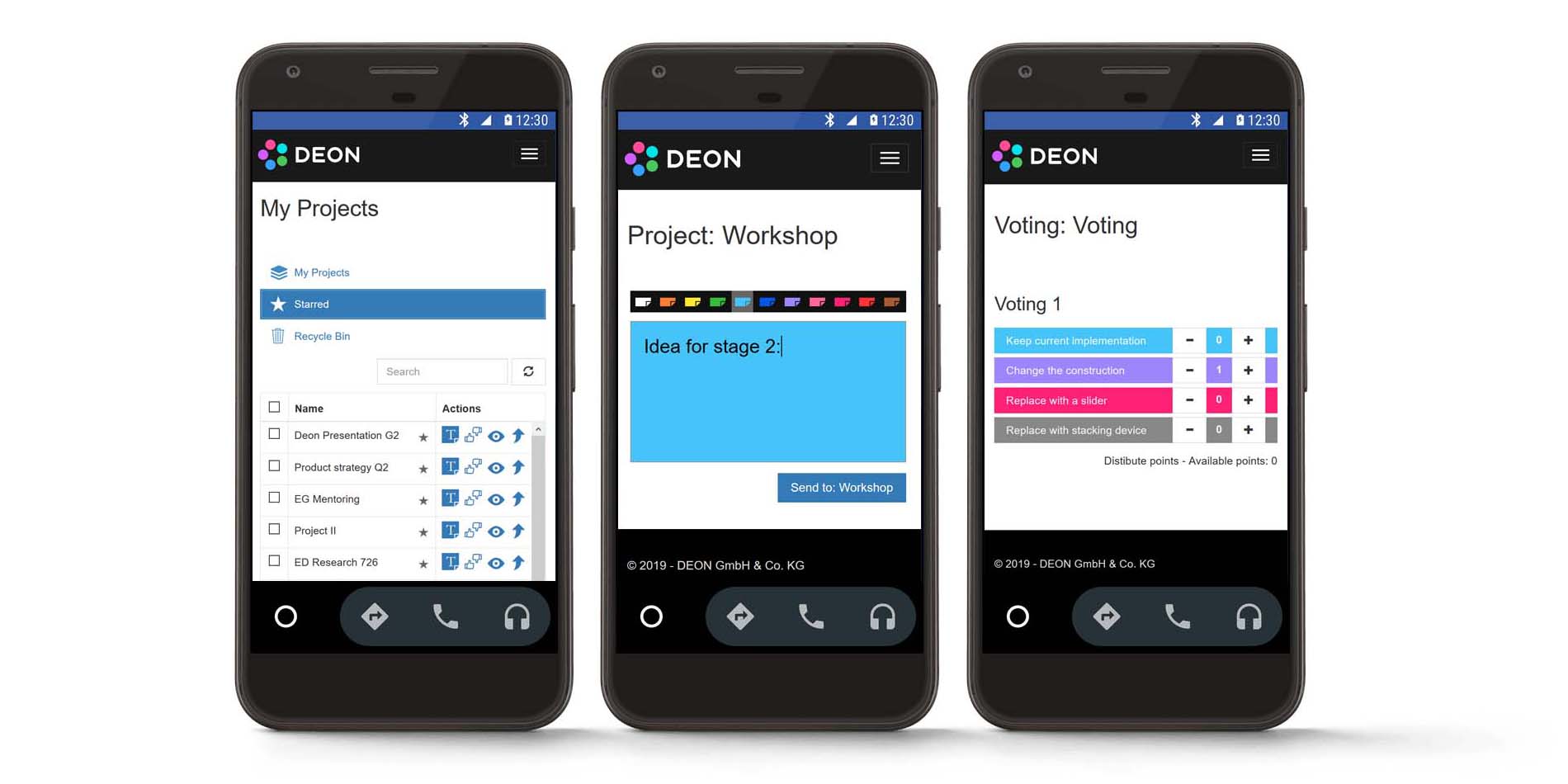
Note: The currently available Lite Apps will soon be unified into a single app.
Web App Desktop
The DEON Web App Desktop and DEON CLOUD Web App enable you to view and edit the DEON workspace in a desktop web browser without installing an application. 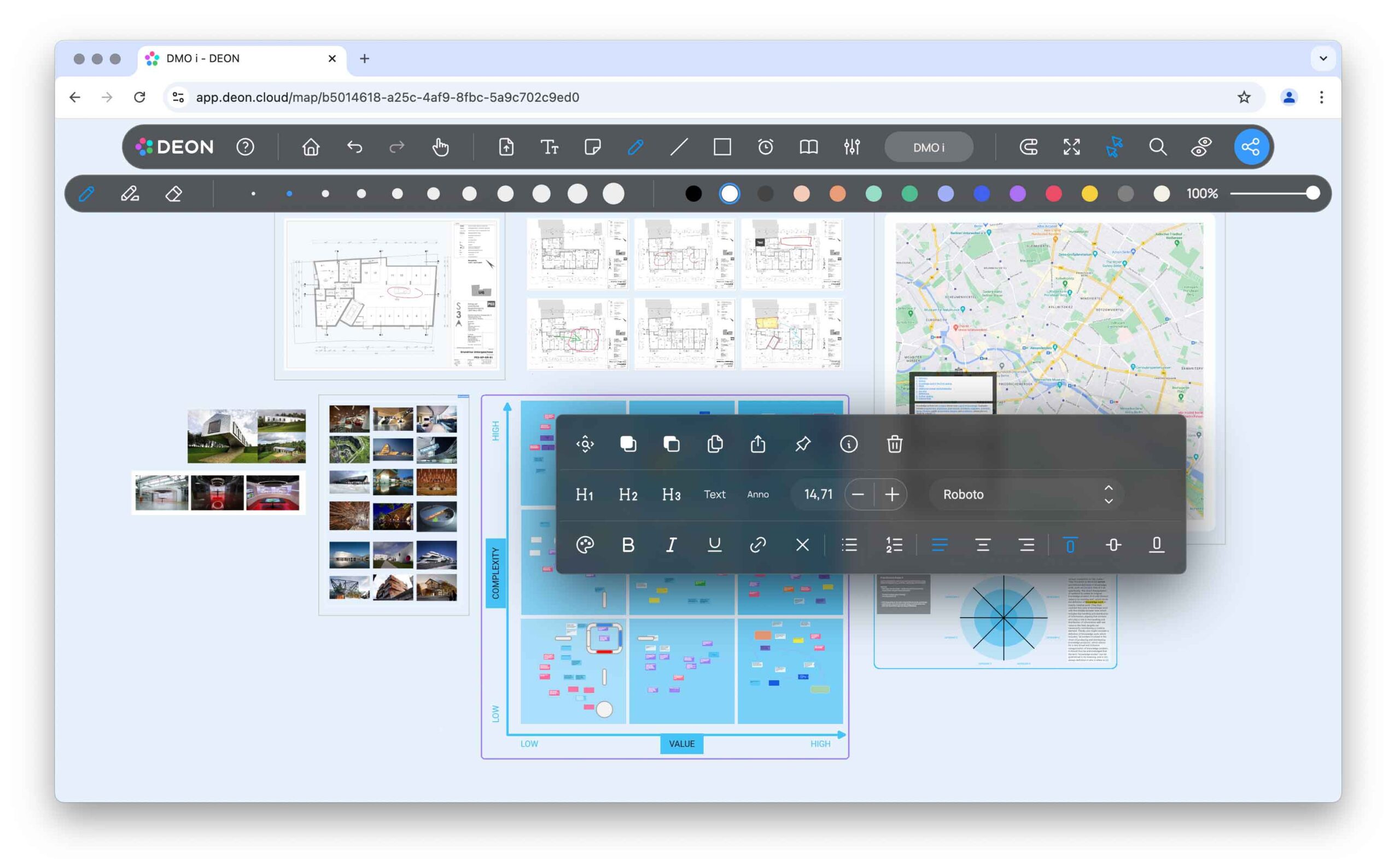
To obtain the full functionality and full performance, we recommend that you OnPrem Desktop App or the CLOUD Desktop App download.
4 Votes
Sie können interaktive Abstimmungen in Sekundenschnelle erstellen.
Stimmen Sie für beliebige Textlabels in Ihrem Projekt ab und zeigen Sie die Ergebnisse mit Balkendiagrammen in Echtzeit an.
Mehrere verschiedene Abstimmungen können parallel im selben DEON-Projekt erstellt und aktiv sein.
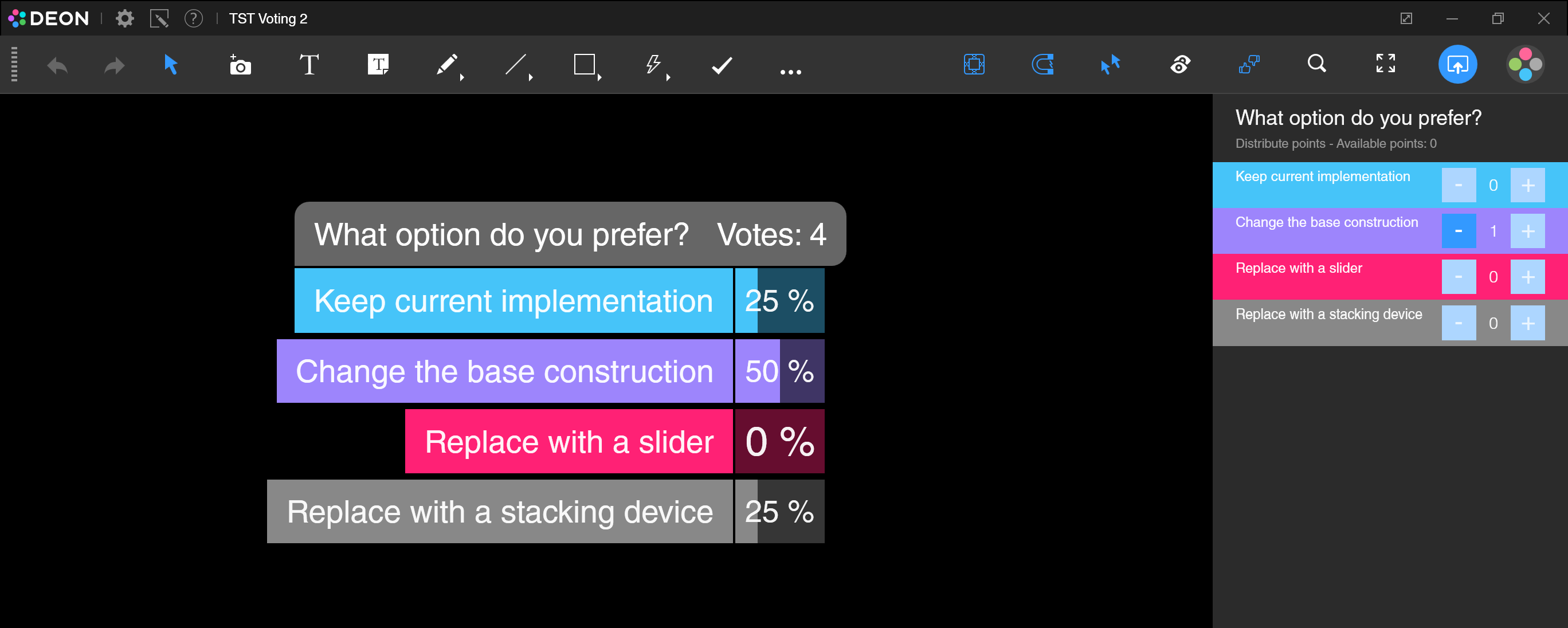
Create a poll:
- Select one or more text labels in your project and click on the "Create Vote" button in the context menu
 .
. - Adjust the voting settings in the voting dialog box:
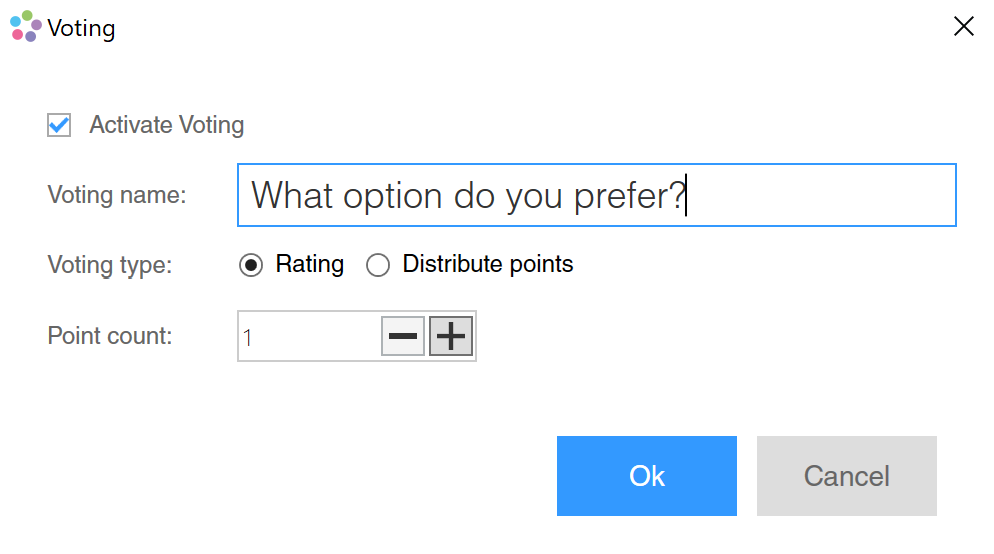
Enable: Sie können eine Abstimmung jederzeit deaktivieren oder reaktivieren. Teilnehmer können nur abstimmen, während eine Abstimmung aktiviert ist.
Rating: This poll type allows participants to assign each text label a score from 0 to „Score“ . This means that all labels could receive the full score.
Distribute points: This poll type allows participants to distribute the „Score“ across all text labels. This means that if one label receives more points, fewer points remain for other labels übrig.
TIP Wenn Sie möchten, dass sich die Teilnehmer nur für eine Option entscheiden, wählen Sie eine „Score“ von 1. Die Ergebnisse werden in % angezeigt.
Participate in a vote:
Use either the DEON Desktop App (OnPrem or CLOUD) or the DEON Lite iOS App (OnPrem only) or the DEON Web App (OnpremOnly) to participate in a poll.
Note: The WebApp runs on any device (e.g., smartphone) with a web browser without installation:
- Open a web browser, navigate to the URL of the DEON server in your organization and log in.
- Click the button „Voting“
 next to a project in the column „Actions“ of your project list.
In the iOS DEON Lite app, open a project and click the “Voting” button in the top right corner.
In the DEON Desktop App click the Voting button  in the main menu to display the voting panel.
5 Follow View
Follow View provides you with powerful and easy-to-use features to coordinate and navigate participants in all types of workshop situations.
Learn more on the Follow View page.