
—————————————————————————–
CLOUD Win: 3.1.433, Mac: 3.1.78
OnPrem Win: 2.11.2215, Mac: 2.11.77
——————————————————————————–
Update of SharePoint Online Integration
Issues related to the embedding of SharePoint Online documents have been fixed.
Export improvements
Improved support for images with transparency during export.
Comment improvements
We have further improved the new commenting feature, which allows you to create comments within the DEON Workspace and start a discussion about a comment within a thread.
Updated DEON Metabrowser Engine
The DEON Metabrowser, which allows you to integrate hundreds of full-fledged web browsers into the DEON Workspace, has become even better!
DHI DAIA HMK-1.3
This release contains the DEON AI integration DEON Holistic DHI with DAIA and HMK-1.3 for qualified customers.
Bugfixes and general improvements
—————————————————————————–
3.1.422 CLOUD
2.11.2203 OnPrem
—————————————————————————–
Issue tracking integrated
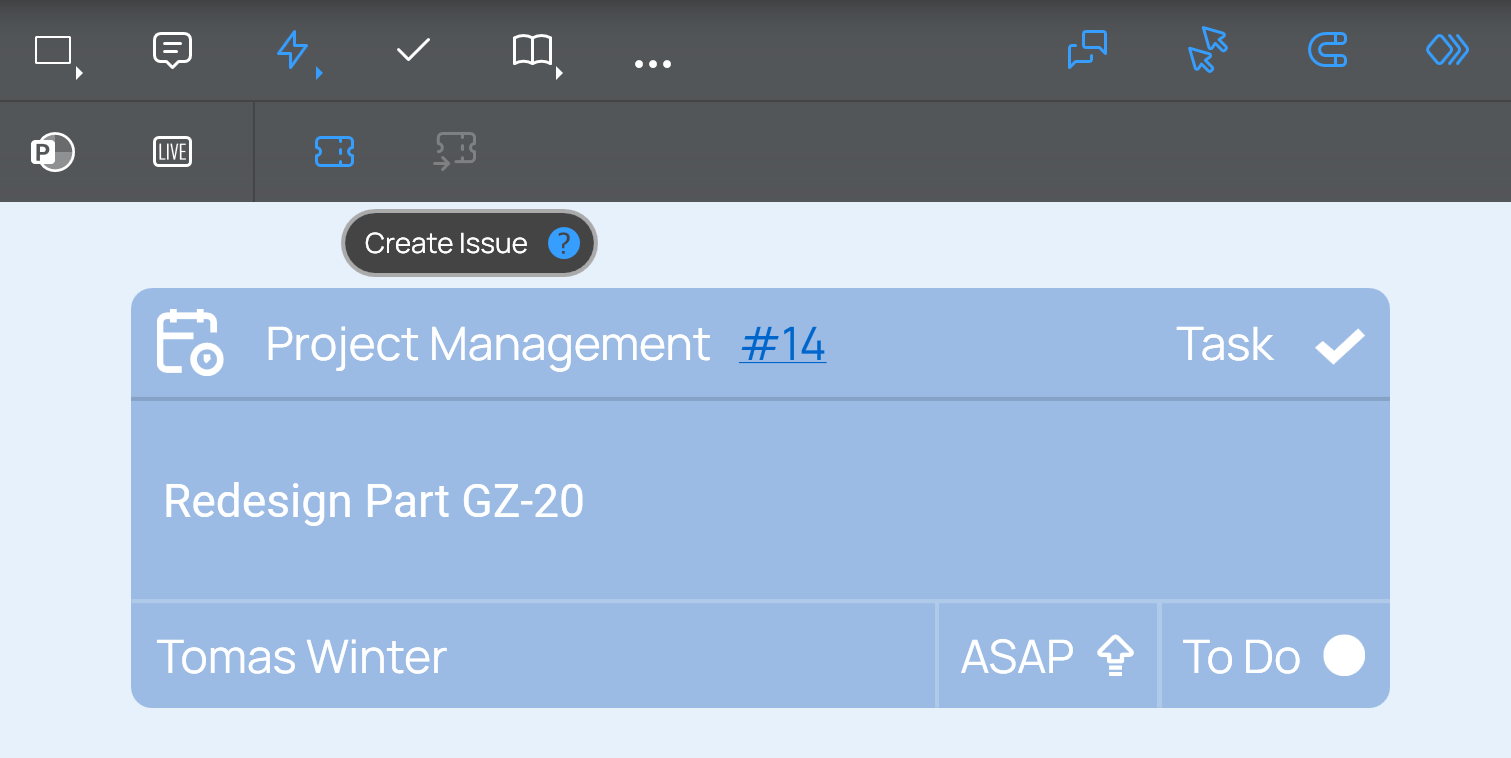
You can now use issue tracking cards without needing an external issue-tracking system such as Jira, Azure DevOps, or Wrike. In the main toolbar simply select „Widgets“, „Create Issue“. In the following dialog under „Available Connections“ select „DEON Built-in Connection“.
PDF export improvement
The resolution of images in PDF export has been further improved.
Miro import
You can now import Miro boards into DEON. Click in the project list on the import button in the main toolbar and select „Import from Miro“.
SharePoint integration updated
Updated compatibility with MS SharePoint for embedded documents and linked files.
Bug fixes and general improvements
Mention and editing of comments and threads
Metabrowser cache
DHI DAIA HMK-1.2
This version contains DHI with DAIA and HMK-1.2 for qualified customers.
——————————————————————————–
3.1.398 CLOUD
2.11.2158 OnPrem
——————————————————————————–
Issue tracking
Improved custom Jira fields.
Optimized bulk import through caching.
New filter options.
Improved creation dialog.
General bug fixes.
DHI DAIA HMK-1.1
This version contains DHI with DAIA and HMK-1.1 for qualified customers.
Bug fixes and general improvements
——————————————————————————–
3.1.377 CLOUD
2.11.2156 OnPrem
——————————————————————————–
Comments and Threads
The new comment feature enables you to create comments within the DEON workspace and start a discussion about a comment within a thread. You can mention other users with the @ sign.
NOTE: This feature may not appear immediately after installing the update. The activation date will be after the client’s release.
Output control
Issue tracking has now been further improved.
Additionally, it now also supports Jira components.
Connectors
The rendering qualityät of connectors has been improved and adjusted to look the same on all platforms.
SharePoint
The DEON SharePoint integration has been updated.
Freepik library
The integration of the Freepik library has been further improved.
SVGs
The handling of SVGs and color adaptation have been improved.
User interfaceä
Several parts of the user interfaceä have been updated and refined.
New export formats .ODP and .JPG
Zusätzlich to the powerful export options kön you can now also export to .ODP, the Open Document Presentation format and directly to JPG images.
PPTX Export Improvements
The PowerPoint export has been further improved.
Cross-browser Search
The powerful DEON Metabrowser engine enables embedding any website or web application directly into the DEON Workspace. Now all embedded web browsers are also included in the search. When you search for text in the Workspace, you will also find text in embedded web browsers.
DAIA HMK-1
This version includes DAIA support with DEON HMK-1 for qualified customers.
————————————————————————–
3.1.344 CLOUD
2.11.2104 OnPrem
————————————————————————–
SharePoint integration update
Updated compatibility with MS SharePoint for embedded documents and linked files.
Simplified sharing of project links
You now have three options to share a link to a project über the sharing dialog:
1. Desktop app link: This link allows the recipient ä to open the project with the DEON Desktop App öffnen
2. Web app link: This link opens the project directly with the DEON Web App in a web browser
3. Lite web app link: This link opens the Lite-Web-App in a web browser. The Lite-Web-App is intended for use in workshops where participants can contribute text or images to a project using their smartphones. It can send text and images to a project's inbox, but it cannot display the workspace.
Viewers können now use links on images and smart screenshots
With the DEON Smart-Screenshot-Tool können Sie Screenshots einer Website in jedem Webbrowser erstellen. Diese Screenshots werden automatisch mit der URL der Original-Website verlinkt. Sie können auch manuell set a link to any image in DEON. Der Link-Button in der oberen rechten Ecke des Screenshots oder Bildes ist nun auch für Benutzer verfügbar, die nur Ansichtsrechte für das Projekt haben.
UI improvements and bug fixes
Arrowheads now look better and scale well.
The task dialog now has an updated design.
———————————————————————–
3.1.327 CLOUD
2.11.2080 OnPrem
————————————————————————–
Minor bug fixes
This bugfix version fixes the following issues:
- Connector elements (arrows, lines) may appear incorrectly connected when connected to text elements. This bug fix automatically corrects the appearance.
- If you have selected multiple users in the list of the sharing dialog, the selection was not visible in the previous version. Now a dot indicates which entries are selected.
———————————————————————–
3.1.325 CLOUD
2.11.2078 OnPrem
————————————————————————–
Improved Video Engine
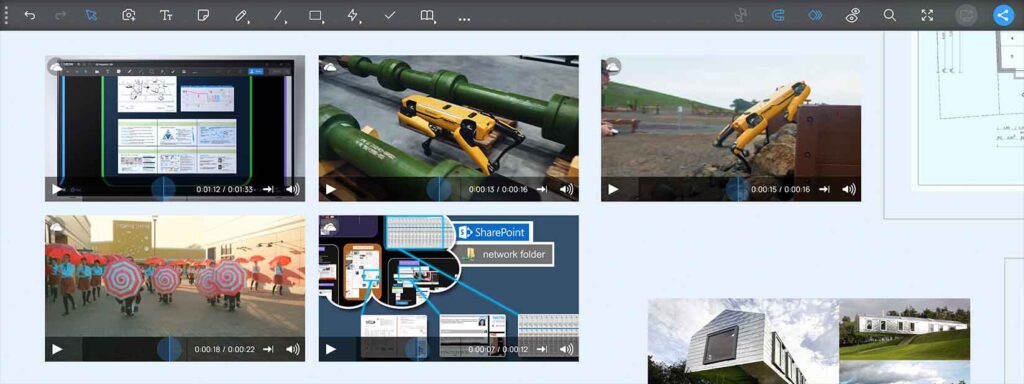
The DEON Video Engine now has further improved performance and Stabilität für multiple embedded video files in a workspace. It is still easy to use: Drag video files simply via Drag & Drop from your Windows File Explorer, OneDrive or a network share, or füg file links from MS Teams, SharePoint or OneDrive to link the files with their original source instead of uploading them.
Color pickär für custom colors
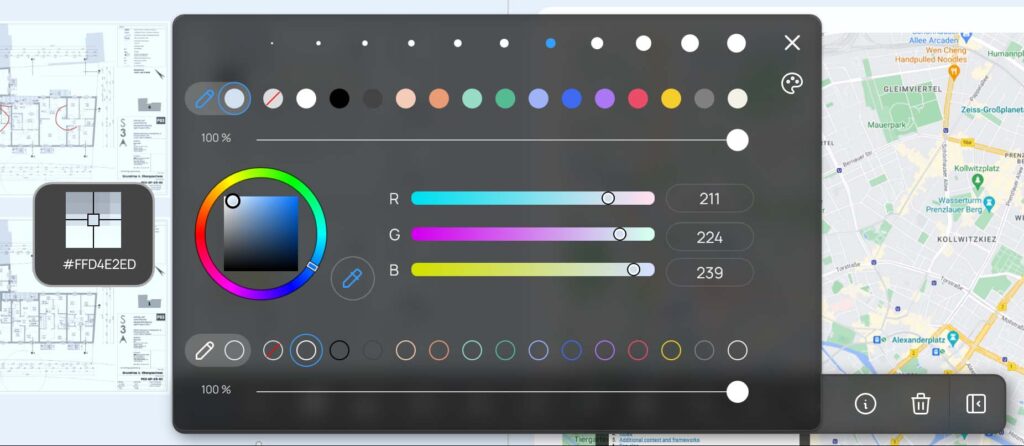
The color palette has been further improved. Now you can also access the color pickär für a custom color. This lets you quickly color your text, your symbol, or your shape with a suitable color.
Vector format (SVG) now available in the Freepik library
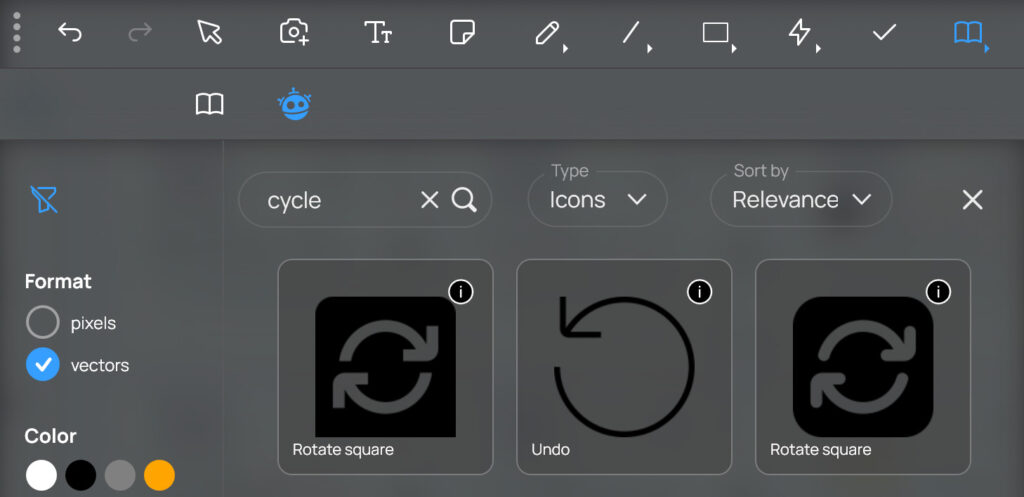
The vector format allows you to change the color of icons and also scale them without loss of sharpness.
High‑resolution images now available in the Freepik library
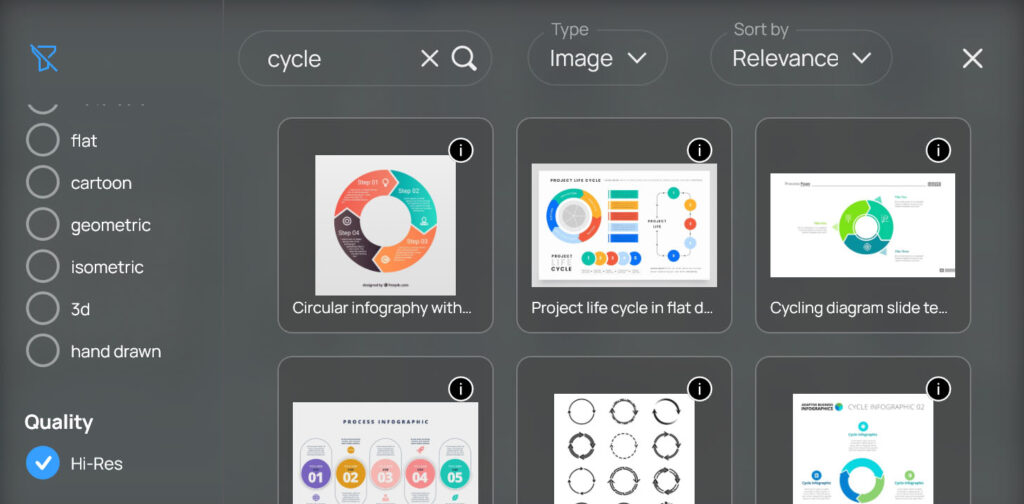
Get high‑resolution images from the Freepik library for even better image quality!
New Timer Widget with Pause Button
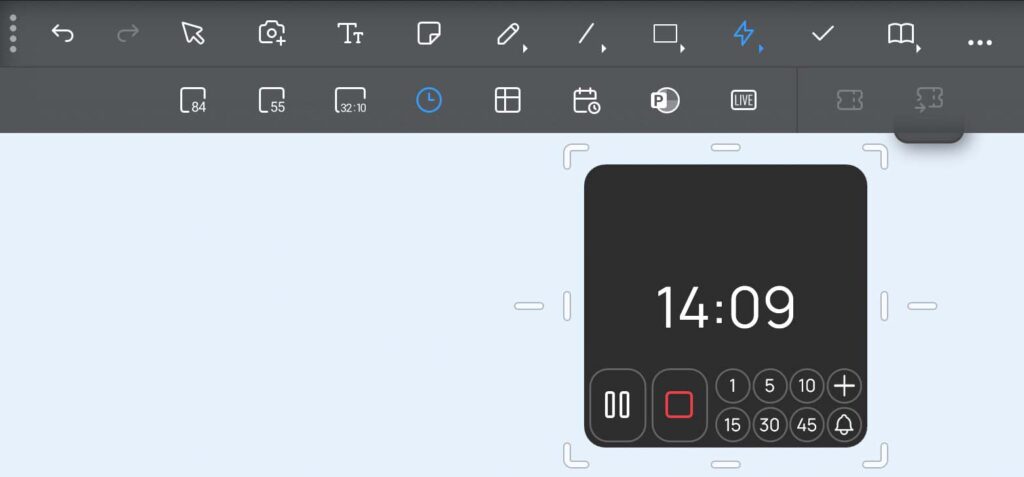
The new timer widget now comes in an updated style and with a pause button.
Rounded rectangles now have bogenförmige corners
The arc-based corners of the rounded rectangle shape from the shape menu now provide you with a clean geometric style. Scaling and Größenänderung has been improved to enable precise and convenient control.
New Scribble option: Constant stroke width
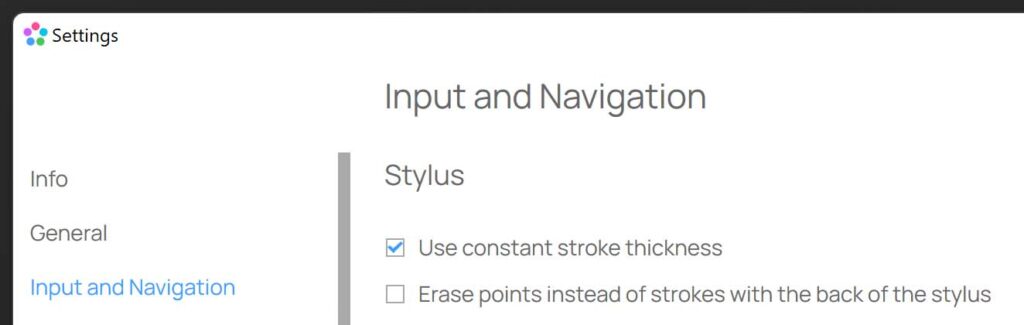
If you draw with a pen in DEON, the stroke width is automatically adjusted to your zoom level. This ensures that the stroke appears with the same thickness relative to your physical screen throughout the drawing process. If you want to change this, you can now enable the "Constant stroke width" option in Settings under “Input and Navigation”. With this option, the stroke width remains constant relative to the content of your workspace. This means multiple strokes have the same thickness, regardless of the zoom level at which they were created.
Bug fixes and performance improvements
The library now responds faster to right-click on the template
Scrollbar in the font selection menu now indicates whether the menu is scrollable
Delete key in the project list fixed
Shift of rotated text while typing fixed
The Jira integration now accepts the Personal Access Token
If you want to sync your Jira projects with DEON cards, you can now use a Jira Personal Access Token (PAT) for authentication.
UI Improvements
The new DEON GEN-2 UI design has been updated and refined in many places.
————————————————————————–
2.11.2060 OnPrem
3.1.300 CLOUD
—————————————————————————–
New DEON GEN-2 UI Design
We are excited to unveil the new look of the DEON-Benutzeroberfläche – a design that combines cutting‑edge modernity with timeless principles of iconic 20th‑century design and focuses on functionality, simplicity and Ästhetik. It is not just about looking good; it is about boosting your focus and efficiency.
Dive in and experience the future of visual collaboration – because your best work deserves the best tool.
Integrated Freepik Library
DEON has partnered with Freepik to provide you with direct integration of the extensive library! Access thousands of icons and images in DEON now, equipped with powerful search and filter tools to streamline your creative process. You will find the Freepik library right next to the DEON library.
New Project Sections
In the project list you can now directly filter projects that have been shared with you and projects for which you have administrative rights. Also try the project search options (#, $) to filter your projects individually by tags or tenants (cloud version only).
New Color Interface
With the new color interface you can easily set custom colors and color palettes to perfectly match your needs.
Updated DEON Metabrowser Engine
The DEON Metabrowser, with which you can embed hundreds of full-featured web browsers into the DEON Workspace, has become even better! Improved compatibility with M365 content from MS SharePoint, MS Teams and more.
SharePoint integration updated
Updated compatibility with MS SharePoint for embedded documents.
Bug fixes and performance improvements
————————————————————————–
2.10.2023 OnPrem
3.1.290 CLOUD
————————————————————————–
Simple MS Teams embedding of Loop components, channels and teams in DEON
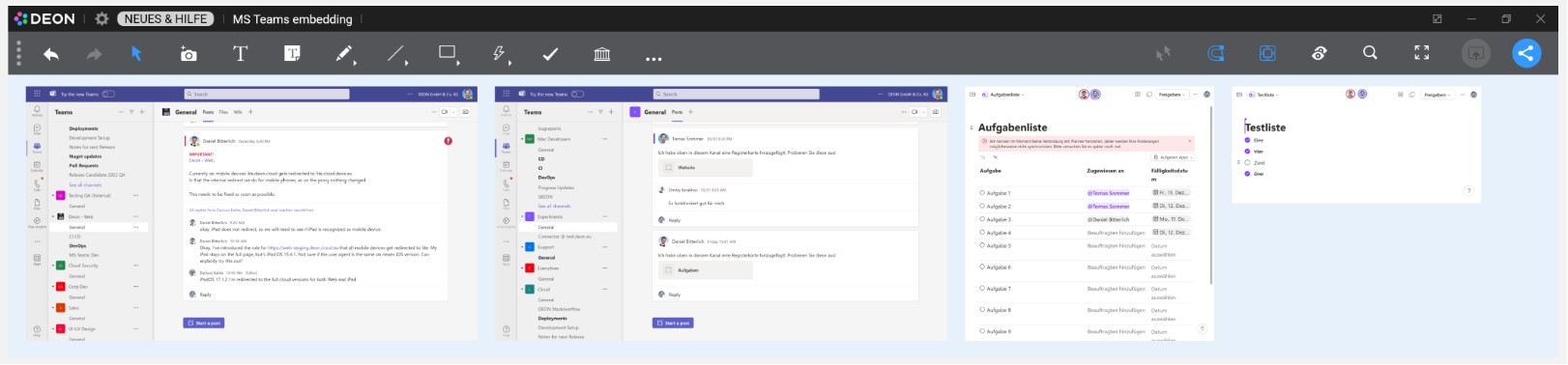
Embedding MS Teams Loop components, channels and teams in DEON is now even easier.
Copy a link to a Loop component, a team, or a channel in MS Teams to the clipboard. In MS Teams you can find this link in the „…“-menu of any team or channel. In a Loop component you can use the „Copy component“ button in the top right corner of a component. Then paste this link into your DEON workspace (Ctrl v). DEON will now automatically process this link and navigate directly to the appropriate view. You can embed as many channels and teams as you like in a DEON workspace, so they are always available in the context of other information in your DEON project. You can scale the channels and teams and change their size to fit the respective content.
Bug fixes
CLOUD Version: The update of the O365 authentication process fixes issues with linked content from MS SharePoint.
———————————————————————–
2.10.2015 OnPrem
3.1.242 CLOUD
———————————————————————–
Flyout Browser for News, Help and More
The integrated Flyout Browser keeps you up to date on news and provides helpful information.
Use it to surf the Internet and even drag content from there directly into your DEON project!
New DEON Lite App via QR-Code Scan
If you share a project, you now find new options such as QR codes.
Scan the QR code with any smartphone to open the DEON Lite Web App to open it.
Upload photos, images, or sticky notes directly to your project's inbox.
You can also bookmark DEON Lite links in your mobile or desktop browser to access them anytime and send content to any project. The project does not need to be open on a desktop to receive content in the inbox.
Improved integration of Jira and MS Azure DevOps
Jira and MS Azure Dev Ops cards können now zusätzlich to the options „Line“ and „Card“ in a compact „Minimal“ version displayed.
Hide projects in your list (OnPrem)
You can now hide projects from your list. They will then appear in a new area that you can access via the „Hidden“ button on the left side. From there you can make them visible again. This is useful for projects that you temporarily do not need to see, such as certain global template projects of your organization.
Note: This feature is currently only available for OnPrem and will be released for CLOUD soon.
Duplicating projects with internal links
When you duplicate or import projects that internal links contain, these links are now retained. So you can easily reuse such projects as templates.
Trackpad navigation for notebooks improved
Swipe with two fingers on your trackpad to move the view window (panning). Pull to zoom.
Alternatively you can also use the existing shortcuts: Hold the space bar and move a finger on the trackpad to pan. Hold Ctrl Alt and move a finger on the trackpad to zoom.
All shortcuts are here listed.
Improvements in support for pen tablets
Pen drawing tablets such as WACOM, XP Pen or Huion now work immediately in DEON. Automatically switch between Scribble and Eraser mode and genießen the pressure-sensitive drawing function in DEON.
Choose from 12 different background colors
In the project settings (available in the “…” section of the main menu) you can now select among 12 different colors for the background of your workspace.
Save custom default styles
You können now your custom default styles für shapes, Scribbles, Stickies, Text and connector elements/arrows save: Wählen select an element and drücken press the „D“-Button „Save as default style“ in the context menu.
Powerzoom-Flexibilität
You können now the Powerzoom function precisely to your needs adjust.
Go to Settings/Input and Navigation/Powerzoom and set the behavior.
Powerzoom ermöglicht allows you to zoom by holding both mouse buttons (or pressing the mouse wheel) and moving the mouse to zoom.
Updated DEON Metabrowser Engine
The DEON Metabrowser, with which you can embed hundreds of full-featured web browsers into the DEON Workspace, has become even better!
You can now disable the browser cache in the settings, if desired.
The engine version has been updated.
UI improvements
The context menu is now more compact. Some advanced features are now grouped into a „…“-submenu.
The display of thevoting results has been improved.
Improved spell checking for text input
You can enable spell checking under Settings/User Interface/Spell Checking.
Please note that this may affect performance.
Copy/paste images from MS Teams chats
Right-click an image in MS Teams and copy it. Paste it directly into a DEON project (Ctrl V)
Fix for security vulnerability CVE-2023-4863
This version includes a fix for the security vulnerability CVE-2023-4863 in the Google component libwebp.
Fix für the CVE-2023-5346 security vulnerability
This version enthält a Fix für the security vulnerability CVE-2023-5346 in the Google component V8.
Bug fixes and performance improvements
—————————————————————
2.10.1927 (OnPrem) 3.1.178 (CLOUD)
—————————————————————
Improved integration of Jira and MS Azure DevOps
Setting up and managing connections to Jira and DevOps is now even more convenient.
The batch import is now faster and more flexible even with a large number of issues.
You can easily filter and sort the batch import list.
The cards in your DEON workspace now also display the priority.
You can now instantly view the problem description within a card by pressing the new description button on a selected card.
To edit the description, you no longer need to leave DEON. A full-featured HTML editor is now displayed when you enter edit mode.
Updated DEON Metabrowser Engine
The DEON Metabrowser, which enables embedding hundreds of full-featured web browsers into the DEON Workspace, has become even better!
In the context menu of embedded web charts, more options for automatic content refresh are now available.
Embedded web browsers now support device-based conditional access.
ÄChange the order of Follow View Groups
You können now the Follow View Groups in the list drag to change their order. This is especially nützlich when you use this list as a table of contents for your project.
Improved SharePoint integration
The function “ Extract page “ for documents now also works for SharePoint documents.
Troubleshooting tool and exit option
Right-click on a DEON task in your taskbar and you will get the „Troubleshoot“ tool and the „Exit“ option directly. Additionally, it remains available in the context menu of the DEON tray icon.
Bugfixes and performance improvements
Check out the new DEON iPad apps as well!
Now with Apple Pencil pressure sensitivity support! Available both for the Cloud and on‑premises.
——————————
Version 2.10.1878
——————————
German-language user interface
The DEON user interface is now also available in German!
Go to Settings/General/Language and choose between System (default), English or German
Jira and MS DevOps Integration
Use Atlassian Jira (OnPrem or Cloud) and Microsoft DevOps (onPrem or Cloud) issues directly in the DEON workspace.
Issues können as Cards or Lines including metadata such as assignee, status or type displayed.
Synchronize in both directions.
Import by Einfügen the URL or by bulk importing selected items.
Use JQL queries or Azure DevOps queries to select specific items for import.
Arrange the imported items freely or automatically by hierarchy.
Metabrowser Improvements
The DEON Metabrowser, which lets you embed hundreds of full-featured web browsers into the DEON Workspace, has become even better!
New web browser engine.
Edit the home URL via the context menu.
Navigate to a specific URL via the context menu.
Web browsers can now also be operated by viewers.
Viewers can now drag multi-selections via web browsers and choose options from the context menu.
Reduced memory usage
Improved navigation performance
Optimized SVG export
Support for MS Office 365 sensitivity label
Improved SharePoint compatibility
Bug fixes and performance improvements
—————————
Version 2.9.1782
—————————
SharePoint Online update
updated compatibility with MS SharePoint Online.
URL Export
If you select one or multiple embedded web browsers, the new option “Copy All URLs” appears in the context menu of the web browser options. It copies all URLs of the selected web browsers to your clipboard.
Updated embedded web browsers
Bugfixes and performance improvements
—————————
Version 2.9.1760
—————————
New DEON Metabrowser Engine
You can now use hundreds (!) of embedded web browsers within the zoomable workspace with ease.
The new DEON Metabrowser Engine also allows you to control automatic and manual updates according to your personal preferences.
Bug fixes and performance improvements
Reduced memory usage
Faster loading and closingß of projects
Faster navigation with multitouch and mouse
Improved export to PPTX and PDF
Improved connection recovery in case of a connection loss
—————————
Version 2.9.1680
—————————
Updated embedded web browser
Multitouch improvements
Multitouch navigation is now even better
YouTube video improvements
Improved behavior and interaction with YouTube videos that you can embed into the workspace by inserting their URL
SharePoint re-linking
Option to re-link a deleted or moved SharePoint/OneDrive file
Improvements to PowerPoint export
Improvements to SharePoint OnPrem support
OnPrem function
Popup of terms of use
Bug fixes and performance improvements
—————————
Version 2.9.1637
—————————
New Features of Follow View
Connected View is now replaced by Follow View. A powerful and easy-to-use set of features for tracking or managing other users during collaboration and workshops.
Additionally, you can use it to divide your projects into sections and create a table of contents for a project.
Improved timer synchronization
Improved export for scribbles and presentation paths
Bug fixes
—————————
Version 2.8.1607
—————————
Support for emails and other file formats from SharePoint storage locations
Support for videos embedded via SharePoint sharing link
Improved support for multiple monitors with different desktop zoom levels
Shake gesture when dragging templates
When you drag a template from the library into the workspace, you can shake it to disable the smart alignment while dragging.
Improved dragging from the inbox
Elements that are dragged from the inbox into the workspace are now displayed in the final size (endgültigen Größe) while being dragged.
Improved shortcut Ctrl Shift C / Ctrl Shift V for copying and pasting styles
The 'Copy' button now has a dropdown menu that allows you to choose between element and stack
Rotation of rotated elements in templates fixed
Improved support for high dpi values on mouse cursors
Export issue of scribbles and empty sticky notes in PDF and PPTX fixed
—————————
Version 2.8.1595
—————————
Improved SharePoint support
Improved file linking with MS Teams URLs
Improved embedded web browser
Improved PowerPoint export
Improved Excel support
Shift of rotated elements in old projects fixed
Improved pinning behavior
You can now move a multi‑selection of pinned elements only with the ALT key pressed or on touchscreens by long‑pressing.
Bug fixes
—————————
Version 2.8.1572
—————————
75 new DEON templates
DEON has released a set of 75 templates.
Please check your library  and enjoy this artfully designed collection.
The library filter  helps you find exactly the right templates for your projects.
Improved PowerPoint-SharePoint linking
Issues with PowerPoint documents linked to SharePoint have been fixed.
Excel Web App Synchronization
When you embed an Excel Web App (by copying/pasting the URL into the workspace or Drag/Drop from OneDrive to DEON), scrolling of a sheet is now synchronized among all users in a project.
Improved text insertion from external applications
Ctrl V for Einfügen with formatting
Ctrl Shift V for Einfügen as plain text without formatting
Improved keyboard shortcuts for text editing
When editing text, the following behavior is new:
Shift Enter creates only a line break. In a list this would not create a new list entry (e.g., a new bullet point), but a line break for the current entry.
Ctrl-Enter creates a new text entry below the current entry (previously this was done with Shift-Enter).
Ctrl Shift-Enter duplicates the text entry.
Improved Excel support
Some previously unsupported Excel files are now supported.
This includes Excel files that contain sheets where all cells are empty.
Improved text formatting behavior
Bug fixes
—————————
Version 2.8.1525
—————————
Incognito mode for embedded web browsers
If you create an embedded web browser (by copying/pasting a URL into the workspace), you will now find a new button for incognito mode in its context menu.
High-resolution option for sharper document pages
Documents from SharePoint with very detailed content can appear blurry at closer zoom levels.
Now there is a new HD button in the context menu of SharePoint/OneDrive documents. It creates a higher-resolution view of the document.
Create template categories in the library filter using square brackets [ ]
Create a tag for templates in your library using square brackets für. Such tags (e.g., [private]) are always listed together at the top of the filter area. You can use these tags to better organize your templates into categories.
Embedded web browser now allows developer tools
Under Settings / Web Browser you can now enable developer tools.
Improved web browser behavior in presentation mode
An embedded web browser can now also be fully operated in presentation mode
Improved annotations on documents
Improved behavior when you create annotations on documents with many pages and scroll through these pages together with other users
Improved insertion of formatted HTML text
Extended SharePoint and OneDrive support
Improved Export
Improved Performance
Bug fixes
—————————————
Version 2.8.1414-1480
—————————————
Create your own color palettes
Click the Schaltfläche in the color palette to freely design your colors.
Use the color picker to extract colors from existing elements inside or außerhalb the workspace.
You can save your palettes in the library, name them, tag them, and share them with other users, just as you would with other templates.
OnPrem customers can define standard color palettes and share them for all users of their server.
To use a palette, simply drag it from the library into the workspace.
Two colors in a palette (marked with ‚A‘ and ‚P‘) are used as default colors for sticky notes, connectors, and pen scribbles.
Powerful new text formatting
DEON now offers a wide selection of formatting options for text:
- Multiple fonts. OnPrem customers can additionally customize their fonts.
- Bold, italic, underlined
- highlight color
- Bullet points and numbering
- horizontal and vertical alignments
- granular size adjustment in points
- Hyperlinks
Adding hyperlinks in any text
You can now assign a hyperlink to any part of a text. Even multiple hyperlinks within a single text.
Improved text usability
To select a sticky note or a text label, click or tap it once. To enter text, simply start typing or click or tap a second time on it to position your cursor.
You can also start directly with a double-click or double-tap to quickly position the cursor and begin typing.
If you prefer the old behavior, you can adjust it under Settings/Input and Navigation/Text Editing.
New (smaller) default text sizes
We have optimized the default text sizes so that they fit better with other content such as websites or documents and are more suitable for export.
For example, if you create a new default text, it will be 11 pt instead of 32 pt.
By default, only newly created projects will offer the new text sizes. Your existing projects will retain the old default values.
If you want to have the new font sizes in an existing project, simply go to the … – in the main menu, select „Project properties“ and in the „Customization“ section uncheck the „Use existing default font size“ box.
New style für sticky notes
Sticky notes are now standardmäßig blue and the text is centered.
If you möchten, you can adjust the default color of sticky notes in the new color palette:
Click the symbol in the palette and edit the accent color (marked with an A).
Adjusting the default colors of sticky notes, connectors, and scribbles
Two colors in a palette (marked with ‚A‘ and ‚P‘) are used as default colors für sticky notes, connectors, and scribbles.
Create sticky notes from Excel cells
Select cells in an Excel file, copy them to the clipboard (Ctrl C) and fügen them into the DEON workspace. DEON will create a sticky note from each cell and arrange the cells according to their position in the ursprünglichen Excel file.
Combine and Share Text
If you select multiple text labels and click the Schaltfläche ‚Text zusammenführen‘ in the context menü, a combined text is created.
In the same way you can split a text that contains multiple lines using the Schaltfläche „Text teilen“ in the context menü into multiple text labels.
New Shapes and Arrows
DEON now offers über 50 shapes and arrows. Many of them have Änderungsgriffe to further adjust their geometry.
New freehand shape tool
Create your own shapes with the freehand tool. When you draw a closed shape, können you also assign it a Füllcolor.
To reuse your shape, fügen you simply add it to your library (Context menu/Share/Export/Save as Icon).
Free rotation of arbitrary content
Every content in your DEON Workspace can now be freely rotated. Even multi-selections. Standardmäßig the rotation snaps in 15-degree steps. To rotate freely, hold the Shift key gedrückt.
New transparent acrylic style for the main menu and context menus
The new transparent acrylic menu style gives you even more visual space and better visual control! You can still see what's behind the menu.
If you prefer the old style, go to Settings/User Interface/Display to turn it off.
Creating project snapshots
Sie können now create copies of projects without their history to save space and accelerate the duplication process. This is the new default behavior when you duplicate projects. To also copy the history, check the Kontrollkästchen „Versionsverlauf mitkopieren“.
Excel Improvements
If you embed Excel as an interactive web app (with O365), the interactions are now even smoother than before
If you prefer to display Excel as internally DEON-rendered Blätter, more exotic Blätter are now supported.
OneDrive improvements
Polls are now also available in EasyMode
Improved embedded web browser
We have updated the embedded web browser in DEON and improved user-friendliness. This is particularly helpful when using web apps within the DEON Workspace.
Templates can now be named directly during creation
Improved arrangement of überlappenden elements
If you, for example, place many images in the workspace, the button äche ‘Raster anordnen’ will separate all images, even if they überlappen.
Stacked elements, however, remain automatically retained when you arrange multiple stacks. To rearrange stacked elements separately, select only one stack and use one of the arrange buttons.
New Project Properties
The project-related settings have been moved.
To change the background color of your project, edit its description or other properties, go to the … section of the main üenu and click on ‚Project Properties‘
There you will also find technical information about your project, such as its size or the number of elements.
Create and edit multiple links (Schaltflächen) at once
Simply select multiple images in the workspace and click on the button „Edit Link“ in the context menu.
New keyboard shortcuts for pinning and copying and Einfügen of styles
Für Poweruser: In the tooltips of the buttons „Anheften“ and „Stil kopieren“ you will find the corresponding keyboard shortcuts!
Change the size of images to their original size with the new cropping option
To make your work easier, large images are reduced when you place them in the workspace. If you want to reset the scaling, you can now use the context menu / Crop / Size to reset to original size.
Improvement of SVG color adaptation
Export to PDF/PPTX is now also für individual objects möglich
Wählen you simply select an object in the workspace and click in the context menu on the button „Share/Export“.
The Pad mode is now more visible
To switch to Pad mode, click “Enter Pad-Mode” in the lower left corner of the project list. The blue banner now indicates the active Pad mode.
Global Projects
OnPrem customers can now share projects, templates, icons or color palettes with all users of their server by using the new attribute „Global Project“. To set this attribute for projects, templates, icons or color palettes, a user must have special rights.
Comprehensive performance improvements
—————————
Version 2.7.1310
—————————
Fix: Connected View continues to work after an internet connection interruption
If DEON loses the connection to the server due to an unstable internet connection, a Connected View session is automatically restored as soon as the connection is normal again.
Context menüs are now collapsible
If a context menü is in the way, simply click the button „Collapse“ in the upper right corner to minimize it to a single button. This option remains until you reload the project.
—————————
Version 2.7.1304
—————————
New features in Connected View and improved behavior
Connected View is now für participants easier to use and für moderators very powerful.
New default behavior: When you enable Connected View, you can only follow other participants if they also enable Connected View. You can also decide at any time to disable or re‑enable Connected View without disturbing other connected participants.
If you have the user rights „Manager“ or „Admin“ you have great new features available that allow you to easily manage even large groups of participants:
- Enable for all
- Enable for all viewers and editors
- Hide connected view button for all viewers and editors
- Set simple mode for all viewers and editors
- Lock navigation for all viewers and editors
- Lock editing for all viewers and editors
Read more on the documentation page for Connected View.
New user rights
DEON projects können now have admins, managers, editors and viewers.
Admins können create additional admins.
Managers are editors with the right to share projects.
Editors können no longer share projects.
Note: Frühere „Editors“ are now automatically converted to „Managers“.
Note for OnPrem customers: The new rights must be enabled by the server administration.
Read more
Presentation paths as screensaver
You can now enable a screensaver option for a presentation path in the menu “…” of the list of presentation paths.
This presentation path will start after a configurable timeout when no user activity occurs.
This option can be restricted so that it only starts for users with view rights.
As soon as the user begins to interact, the presentation path is automatically stopped again.
New tool for copying styles
You can now copy styles (colors, transparency, borders, line styles) from elements and paste them into other elements.
Select the source elements and click the brush button „Copy style“ in the context menu. Then select the target elements and click the brush button „Paste style“ to apply the style.
List recent changes when you enter a project:
A blue popup now asks whether you want to see the changes or skip them.
Visio Online files are now unterstützt
Sie können die URL einer Visio Online-Datei einfügen oder sie per Drag&Drop aus einem OneDrive-Ordner in den Arbeitsbereich ziehen. The Visio Online file can then be edited directly in the workspace.
New shortcuts
The search bar now opens with Ctrl F geöffnet
Help now opens with F1 geöffnet
New autostart setting
Under Settings/General können you configure DEON to start automatically when you log into Windows.
Embed linked SVGs from the Internet
You können now copy/paste the URL of SVGs from the Internet. If the original SVG ändert, it will be automatically updated in your workspace.
Export embedded file paths
When exporting to PowerPoint or PDF, you now have the additional option „Link sources“ in the export dialog. If your export contains objects that are linked from external locations in DEON, the paths to those locations will be included as links in the exported document.
Polls now have a titleüheading
The header shows the name of the poll and the number of participants who have voted.
The header is automatically displayed über the top poll text.
Anchored elements können now freely in the Größe changed be
You können any element in the workspace anchor, to get a mirrored view in your view window by clicking the Anchor button in the context menu of any element.
To change the Größe of the anchored view, simply drag the lower right corner.
The project options in the context menu of a project on the start screen have been rearranged for better user-friendliness
Sharper view of scaled documents
The display quality of scaled single-page documents has been improved.
Improvements in the template library
In addition to the thumbnails, a list view is now available.
The tags in the filter area are now sorted alphabetically.
Improved performance for projects with many dotted lines
Further improved support for SharePoint, SharePoint Online and OneDrive
Bug fixes and performance improvements
—————————
Version 2.7.1225
—————————
Vote directly in the project window
In addition to the web browser and the iOS app, you can now also vote directly in a project in the DEON Windows version.
As soon as a voting is created, a new voting button appears next to the search icon in the main toolbar.
Improved performance for large projects with thousands of items
Under Settings/User Interface/Performance you can adjust the new performance settings. The top three options are enabled by default (recommended).
New improved embedded web browser
New support for XLSB files
Improved support for SharePoint and SharePoint Online
Improved handling for O365 documents
Click the Excel/PowerPoint/Word icon in the context menu to open the file with the appropriate desktop app.
Word and PowerPoint: Use the O365 button in the context menu to toggle between a multi‑page view or the embedded web app.
Click the opening arrow in the context menu to open the file in your external web browser.
Improved export quality for extremely downscaled objects
Improved behavior for connections and arrows
Improvements toPresentation path
All options are now saved in their path.
The speed of the transitions has been refined.
A timer now also works if it is interrupted by manual navigation.
Timers now also work for users with view‑only rights.
The UI-less fullscreen mode now also hides overlay buttons on documents
This provides a cleaner appearance and is helpful for use in kiosk mode.
The button for the UI-less mode is located in the main menu under „…“ and is also available in the quick menu (right-click in the workspace).
Sharing for multiple users by copying/pasting email addresses directly from Outlook email fields without reformatting
Show email addresses as tooltip when you hover over the user names in the user list of the sharing dialog
Copy/Paste images directly from Outlook
Improved highlighting of changes
New Live Source
Whole screens can now be mirrored into the workspace.
To create a live source, select „Widgets“ from the main menu, click on „Live Source“ and click into the workspace.
Improved multitouch behavior
Longpress now always starts a multi‑selection (no pinning of the background needed any more).
To move elements by Berührung, simply tap them once to select them, and then drag them by tapping.
Improved behavior for multiple selections
Hold the Alt key down to start a multi‑selection at any location.
Hold the Shift key down to toggle between rectangle and lasso selection.
You can adjust your preferred behavior under Settings/Input and Navigation/Element Selection.
Improved PowerZoom
You können now also use the horizontal mouse movement for zooming. Adjust your preferred behavior under Settings/Input and Navigation/Enable Horizontal PowerZoom.
Improved zoom behavior with mouse wheel
Remember: Instead of the mouse wheel können you also try PowerZoom by holding both mouse buttons gedrückt.
Improved performance with animated GIFs
Improved text behavior
If you split vertically locked text fields by pressing the Shift-Enter key, the text field is automatically set to vertical auto size.
The text is now directly editable even when the box extends über the screen by up to three pages (at very low zoom levels).
Multiple embedded web browsers reload at once
Select multiple embedded web browsers and click the „Reload“ button in the context menü.
MS Teams-related improvements
Copy/paste of file links directly into DEON. Both MS Teams and OneDrive link formats are supported.
Flickering title bar during DEON screen sharing with MS Teams fixed.
If the network paths in your organization ändern, können you now easily reassign multiple paths at once
Click in the context menu of a detached file on the button „Netzwerkpfad aktualisieren“ (symbol of a broken chain). Click in the following dialog on „Ja“.
Bug fixes and performance improvements
—————————
Version 2.7.1145
—————————
Videos from SharePoint synchronized with OneDrive are now played directly from the local sync folder to reduce network traffic.
Bug fixes and performance improvements
—————————
Version 2.7.1117
—————————
Fix to support embedding Google Docs and MS Office WebApps
—————————
Version 2.7.1115
—————————
New simplified portable DEON installer
To simplify the installation, können you now select our new portable installer on our download page wählen. It requires no administrator rights and installs DEON in a per‑user context for the current user, unlike the MSI installer, which requires administrator rights and installs in a per‑machine context.
Bug fixes and performance improvements
—————————
Version 2.7.1087
—————————
New types of connectors, lines, and arrows
You can now create a variety of angled and curved connector pieces, lines, and arrows.
Select different start and end points, dashed or dotted lines and save your settings as default.
Double‑click the square line handles to add new corners.
Double‑click the round corner handles to remove corners.
Drag the radius handles to adjust the curvature between sharp and rounded.
Create links to any file folders by simply taking a screenshot of your Windows File Explorer:
Improved clipboard support
Inserting into DEON now works with more tools such as Greenshot or PowerPoint.
Excel documents can now be added in two ways:
As a single multi-page object (Legacy) or as separate objects for each sheet with support for cropping and scrolling.
Caching for improved SharePoint/OneDrive performance
Bug fixes and performance improvements
—————————
Version 2.6.1061
—————————
Embedded web app documents can now be opened with the desktop app.
New button in context menu.
New location für the cache.
To prevent accidental Löchen of the cache from the Temp folder, the location was moved to C:\Users\Me\AppData\Local\. Existing cache files in the previous default folder are automatically moved during installation.
Bug fixes and performance improvements.
—————————
Version 2.6.1052
—————————
Improved and more flexible navigation options:
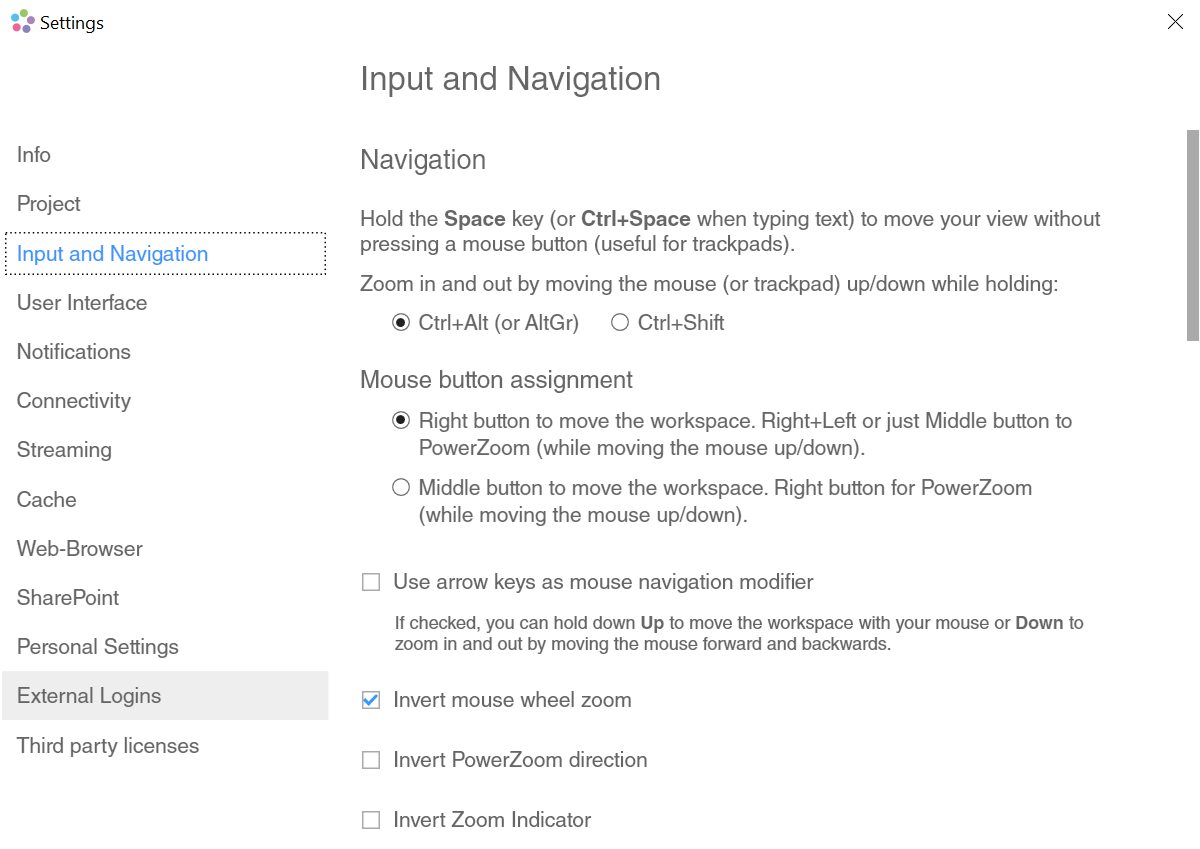
- New mouse button assignment options for navigation in the workspace. Perfect if you're used to the key assignments of some CAD/3D modeling tools and want to navigate in DEON the same way.
- New keyboard behavior for navigation. Useful if you want to use a laptop trackpad instead of a mouse.
Create connections between elements in the workspace immediately with the new connection handle.
An improved snapping behavior helps you adjust the connection positions quickly.
Bug fixes and performance improvements.
—————————
Version 2.6.1034
—————————
Many tooltips now contain help buttons that take you directly to the corresponding help section.
Pinned elements no longer have handles for resizing or scaling. This prevents unintended changes.
Bug fixes and performance improvements.
—————————
Version 2.6.1013
—————————
Jump with shortcut buttonäches immediately to other places in your project. New option: „No animation“. Also useful für creating a click dummy.
Bug fixes and performance improvements.
—————————
Version 2.6.1007
—————————
Looping presentation paths: You can now create presentations that automatically run in a loop. Combined with the timer function you can automatically create endless presentations.
You can now add elements from multiple selections add (or remove), while holding the Shift key (or Ctrl) and dragging a selection box around the elements.
ThePinning is now also supported for copying/pasting and duplicating multiple selections.
Inserting live sources from the DEON System Tools. If you copy a live source window in the DEON System Tools, you can now directly insert it into a DEON workspace as an embedded live source.
Bug fixes and performance improvements.
—————————
Version 2.6.997
—————————
Export of MS PowerPoint annotations: You can now embed all Annotations (Scribbles, Text, Images, Shapes, etc.), that you create on PowerPoint slides, into the PowerPoint file itself. Simply click on the PowerPoint document in the DEON Workspace, click on „Share/Export“ in the context menu and select „Export … with Annotations“. You can export to PPTX or PDF. The exported annotations in the resulting PPTX file are fully editable, just like the original PowerPoint content.
Improved handling of documents: When you expand the pages of a multi-page document, they always remain in front of other elements in the workspace. This way, you can quickly open and close documents without worrying about the surrounding content.
Bug fixes and performance improvements.
—————————
Version 2.6.974
—————————
New toolbar with embedded zoom indicator: We removed the zoom indicator on the left edge to create more space, and replaced it with the new multi‑purpose zoom indicator in the toolbar:
Press it to view the entire project. Press it again to zoom to level 0. Next to the new zoom indicator you will also find the buttons „Stack“ and „Smart Align“.
Extended Excel Viewer: Drag an Excel file from Windows File Explorer into the DEON workspace. Select specific sheets. Place, crop and scale each sheet individually. Scroll vertically and horizontally with the right mouse button or two fingers or use the mouse wheel. To add sheets from the same file, select an existing sheet in the workspace and click in the context menu on „Add sheet“.
Note: You can decide whether to keep the Excel file at its original location and embed it in the DEON workspace, or create a copy of the file on the DEON server: When you drag the file into the workspace, hold the Shift key pressed before dropping it.
Instant editing for MS O365 documents directly in the workspace: The new MS Office button in a document's context menu allows you to edit the document instantly on the spot.
Drag the document (Word, PowerPoint, or Excel) from your Windows Explorer OneDrive folder into the DEON workspace or copy the SharePoint URL and paste it into the workspace. Select it and click the MS Office button in the context menu. Select it again and wait until the green frame appears. You can now start editing directly.
Performance optimizations for freehand drawings: We have further optimized the processing, rendering, and export of scribbles in PDF and PowerPoint. Additionally, you can adjust the drawing accuracy in the settings under "Input and Navigation" / "Stylus".
Scribble combination: You can now combine multiple drawings into one object to simplify handling and improve performance: Select multiple scribbles and click 'Combine drawings' in the context menu.
The timer widget now has a mute button to disable the sound at the end.
Bug fixes and performance improvements.
—————————
Version 2.6.905
—————————
New voting feature: Create interactive votings within seconds. Vote für any text elements in your project and display the results with bar charts in real time.
To create a voting, select text labels in your project and click the Schaltfläche „Voting erstellen“ in the context menu.
You do not need to install DEON to participate in a voting. Simply use any web browser on any Gerät (e.g., smartphone) and sign in to your account at https://cloud.deon.eu. Click the Schaltfläche „Voting“ next to a project in your project list.
Or use the new version of the iOS DEON Lite app, öffnen Sie ein Projekt and click the „Voting“ button in the upper right corner.
New DEON Web App for sending text notes to any DEON project without installing DEON. Simply use any web browser on any device (e.g., smartphone) and log in to your account at https://cloud.deon.eu Click the „Contribute“ button next to a project in your project list.
The new "Disable Stacking and Pinning" mode allows you to better handle complex layouts. Enable it via the new button in the zoom navigation bar on the left. Pinning, stacking, and rise-up are disabled by this mode. You can then move elements without affecting other stacked or pinned elements.
The new "Simple Mode" is available under Settings/User Interface: In this mode, keyboard shortcuts are disabled and advanced buttons are hidden. This is particularly useful during workshops with inexperienced users.
MS OneDrive support can now be toggled under Settings/SharePoint/OneDrive support.
MS OneDrive files are now opened from the local OneDrive folder, if available.
Support for web-based SharePoint online authentication has been added.
The behavior of text scaling has been further improved for tables with a locked lower handle.
Screensaver prevention: The full-screen mode (button in the right corner of the DEON window title bar) now prevents the activation of a screensaver.
UI improvements for double-tap and double-click zoom.
New automated project backup utility for backing up mobile server setups. Press Ctrl‑B on the home screen to activate.
Bug fixes and performance improvements.
—————————
Version 2.6.850
—————————
Intelligent snapping and alignment helps you arrange your content.
Shake gesture: Shake an element briefly to temporarily disable smart snapping and alignment.
Interactive arrangement function for multiple selections: Use the double line handles to interactively compress, spread, align, and reorder multiple elements.
Support for Microsoft OneDrive.
Improved compatibility and performance of Microsoft SharePoint and SharePoint Online.
MS O365 Excel documents are now displayed as embedded interactive Office Web Apps.
Remote desktop integration: Live sources can now be interactive RDP sessions.
MS Outlook e-mail support: .msg files can now be dragged into the workspace.
Convert whole images into clickable buttons through „Edit link“ in the context menu. The target can be an external URL or any element or a selection within the current project or another project. To obtain a link to an element or a selection, use „Share/Export“/“Copy link“ in the context menu of the element or selection.
Create shortcuts to file folders within the workspace: Drag and drop a folder. Folders on SharePoint/OneDrive can be embedded (hold down the Shift key before releasing).
Presentation paths: Individual pages of distributed multi-page documents can now be selected as steps.
Presentation paths: New transitions to fade to black.
Presentation paths: Automatic step timer for fully automatic presentations.
Presentation paths: Move multiple steps in the timeline and change the properties of multiple steps at once.
Presentation paths: Keep web browsers active during a presentation: Use the "Keep Active" button in the context menu of the embedded browser.
UI-less Mode: The handle to the inbox is now hidden and only appears when hovered over with the mouse. The mouse pointer also disappears if it is not moved for 3 seconds. Note: You can activate the UI-less mode in the "..." menu or in the quick menu (right-click or long press). Deactivate it with the ESC key or in the quick menu.
Documents: Browse the pages of documents with the arrow keys or the clicker: Always mirror documents when they are in the middle of the workspace, never pan the workspace.
Documents: When you spread the pages (grid, horizontal or vertical view), the new "Compress to this page“ button in the lower left corner of a page collapses the document to a single page and sets this page. If the collapsed view is outside the viewing window, DEON will automatically navigate to this position. When you expand a document, DEON will now automatically zoom it to fit the viewing window (if it wouldn't fit otherwise).
Documents: Improved performance when expanding and turning pages. Improved user-friendliness for double-tap zoom on pages with scribbles. Improved user-friendliness when panning.
Improved UI performance for text. Enabled by default in UI settings.
Active Area Frames now work correctly with the zoom bar and the "Show Entire Project" button.
Processes are now searchable.
Text: When changing the font size, the size of a floating text box is no longer changed when the resize handles are locked. You can lock/unlock them with a double click. Locked handles appear in blue. For example, a sticky note is fully locked by default and does not change its size when you change the font size.
Extracted pages of documents (buttons in the lower right corner of a page) now also copy all annotations on that page.
Anchored element (available in the context menu of any element): Double-clicking/tapping on the anchor window now navigates to the position of the corresponding element in the workspace.
Duplicating while dragging is now only possible with the Ctrl key (no longer with the Alt key).
The 'being edited' label for text elements (which appears while another user is editing a text in a project) can now be interrupted by another user by clicking on the text element.
Hold down the arrow keys to continue moving elements.
Change colors and transparency of SVGs directly in DEON.
Support for saving modified SVGs on a network share.
Screenshot: Allows taking a screenshot of the project itself (with Shift key pressed).
Larger thumbnails on the home screen.
Button 'Reload' for embedded web images (web images can be created by inserting URLs of images into the workspace).
User interface improvements.
New shortcut Ctrl-E to display the entire project.
The problem that 'All users' invites all known users instead of project users has been fixed.
Improvements in DPI detection.
PDF export: Option to not export hyperlinks.
Eraser with Stylus: Allows switching to dot eraser also when operating with the stylus (not just with finger touch).
Problems with cropping documents fixed.
When inserting SharePoint URLs or files with the shift key held down, an embedded browser is always created.
Inserting into InBox is now possible with the keyboard shortcut Ctrl-Alt-Shift-V.
Performance improvements for animated GIFs.
Tasks: Long task lists within a project are now scrollable.
Performance and stability improvements in ConnectedView.
Improved rendering performance for scribbles.
Improvements in touch operation (tolerance when dragging distance).
Pad Mode: Send sticky notes with Shift-Enter and directly create a new note.
Performance improvement in the calculation of aggregated user capability permissions.
Sharing a project with multiple users: You can now copy/paste a list with line breaks (e.g., directly from Excel into the DEON sharing dialog form field). Note: Separation by semicolon is still supported.
Share a project without allowing changes to your content. You can set the "Public Project" attribute (globe icon) in the context menu of a project on the home screen. Users with edit permissions can then only add content and edit their own content, but no longer change content from other users. This "Public Project" attribute can now be toggled on or off while other users are using the project. It takes effect immediately.
Stability corrections for the Timer widget.
Table (available in the "Widgets" menu): Several bug fixes.
When exporting to PDF or PPTX, exported SVGs, connectors, and drawings are now vectors instead of rasterized images.
New command-line parameter „-nochanges“ starts DEON without highlighting the Änderungen in a project (useful in Präsentations situations). This parameter only works when used together with „-url“ to load a specific project. You can copy the URL of any project to the clipboard on the home screen by right‑clicking „Link kopieren“. You can then create a DEON shortcut on your desktop and change the „Ziel“-field to something similar like: „C:\Programme\Deon\Deon.exe“ -nochanges -url https://cloud.deon.eu/Web/l/PROJECTNAME?3bb53795-b4bf-4f83-9e7a-ede0f1bc24a0
By double‑clicking this shortcut the project is loaded directly and the highlighting of Änderungen is skipped.
To start in fullscreen mode without a user interface, use „-uiless“.
To start directly with an existing presentation path, use „-present“.